
Email when a new product receives first stock
Overview
Planufac automations can send a one-time email the first time a product that was on zero inventory receives stock (inventory moves from 0 to 1 or more).
This is useful when the team needs to know that a newly added product has actually received stock for the first time — for example for listing, marketing, or warehouse follow-up — without getting emails every time stock changes later.
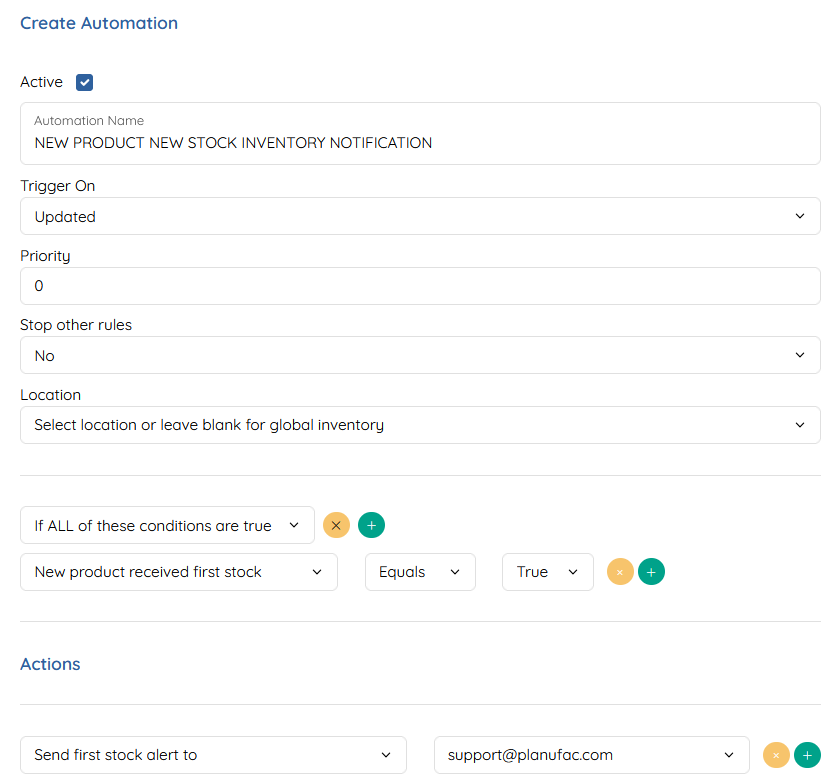
Example automation name: NEW PRODUCT NEW STOCK INVENTORY NOTIFICATION
What it does
When the automation is active and matches:
- A product’s inventory is updated.
- The product meets the first stock condition (new product received first stock = True) — typically inventory has moved from 0 to 1+.
- Planufac sends one email to the address you configure, with product information (for example name, SKU, category and brand).
- That product is then flagged / excluded so the same first-stock email is never sent again for that product — even if stock goes back to 0 and up to 1+ later.
How this differs from “product created” email
|
|
Product created email | First stock email (this feature) |
|---|---|---|
| When | Product record is created | Inventory first goes from 0 to 1+ |
| How often | When create rules match | Once per product only |
| Typical use | “A product was added to the system” | “This product has stock for the first time” |
Where to set it up
- Open Automations in Planufac (Automations list).
- Create a new automation or open an existing one.
- Tick Active if you want it running.
Example setup
| Setting | Example value |
|---|---|
| Automation name | NEW PRODUCT NEW STOCK INVENTORY NOTIFICATION |
| Active | Yes |
| Trigger On | Updated |
| Priority | 0 |
| Stop other rules | No |
| Location | Leave blank for global inventory, or pick a location |
| Conditions | If ALL of these conditions are true |
| Condition | New product received first stock → Equals → True |
| Action | Send first stock alert to → (e.g. support@planufac.com) |
How to create the automation (step by step)
- Go to Automations.
- Create a new automation.
- Set Automation Name (e.g. NEW PRODUCT NEW STOCK INVENTORY NOTIFICATION).
- Tick Active.
- Set Trigger On to Updated (inventory changes are updates).
- Optionally set Location, or leave blank for global inventory.
- Under conditions, choose If ALL of these conditions are true.
- Add: New product received first stock → Equals → True.
- Under Actions, choose Send first stock alert to and select the recipient.
- Save the automation.
Important: This alert is once per product only. After it has fired, further stock movements on that product do not re-trigger the same first-stock email.
Tips
- Confirm the recipient before leaving the rule active.
- Use a clear automation name so you can tell this rule apart from “product created” notifications.
- After go-live, test with a product that goes from 0 stock to 1+ (in a safe environment) and confirm only one email is sent.
- If you also use a product-created email, both can run — they cover different moments in the product lifecycle.