
Replace SKU import
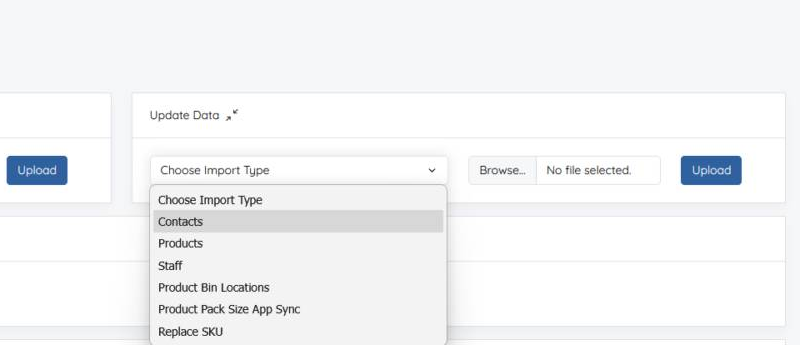
Planufac now includes a Replace SKU option under Update Data on the Import/Export page. Use it when you need to change a product’s main SKU using the product’s internal ID, without re-importing the whole product record.
Your file needs only two columns: id (the product ID) and new_sku (the SKU you want to set).
Where to find it
Open Import/Export: https://my.planufac.com/import/list
On that page, use the Update Data section and choose Replace SKU from the import type list.
How to use it
- Get the product IDs you need (for example by exporting products from the same Import/Export page, or from the product screen).
- Create a spreadsheet or CSV with these headers in the first row:
idandnew_sku. - Add one row per product: the product ID in column A, and the new SKU in column B.
- Go to Import/Export.
- Under Update Data, choose Replace SKU.
- Browse to your file and click Upload.
- Wait for the import to finish, then check the product: the main SKU should match
new_sku.

File template
Required columns (exact header names):
| Column | What to put |
|---|---|
id |
Existing product ID in Planufac |
new_sku |
The new main SKU for that product |
Notes
When a main SKU is replaced, Planufac keeps the previous SKU as an Alternate SKU on that product. That helps older references still resolve. If you later want to use the old code as the main SKU again, remove it from Alternate SKUs first, or you may see a message that the SKU is already in use for the company.